Health Check
Health check is a tool designed to evaluate the state of Orchestra. It executes various tests to gather information and provide notifications regarding the performance and efficiency of the system.
Unlike the alerting engine, which monitors scenario-specific values, the health check offers a more holistic overview. Its primary aim is to inform users about potential anomalies. Some issues may arise frequently but can often be addressed easily by the customer without requiring further support. With this tool, users should be able to resolve such problems independently.
The health check tool will not make any changes to Orchestra. It will solely identify anomalies and provide hints for resolution.
The health check executes several "checks":
A check refers to a test case conducted on the Orchestra system, focusing on specific components. The execution of a check results in a traffic light indication:
-
 - Error:
A severe problem has been detected, putting the system in a risky state. -
 - Warning:
An anomaly has been identified, but it does not currently pose a serious threat. To prevent future issues, action may be advisable. -
 - Success:
The check was successful, with no anomalies detected. -
 - Not Executed:
The check has not been executed yet (since the server is running). -
 - Failure:
The execution of the check itself failed, preventing any evaluation of results.
These indicators help you quickly assess the health of your system and identify any unexpected behavior.
To access the health check view, click the Health Check icon in the Monitoring section of the left-hand menu:

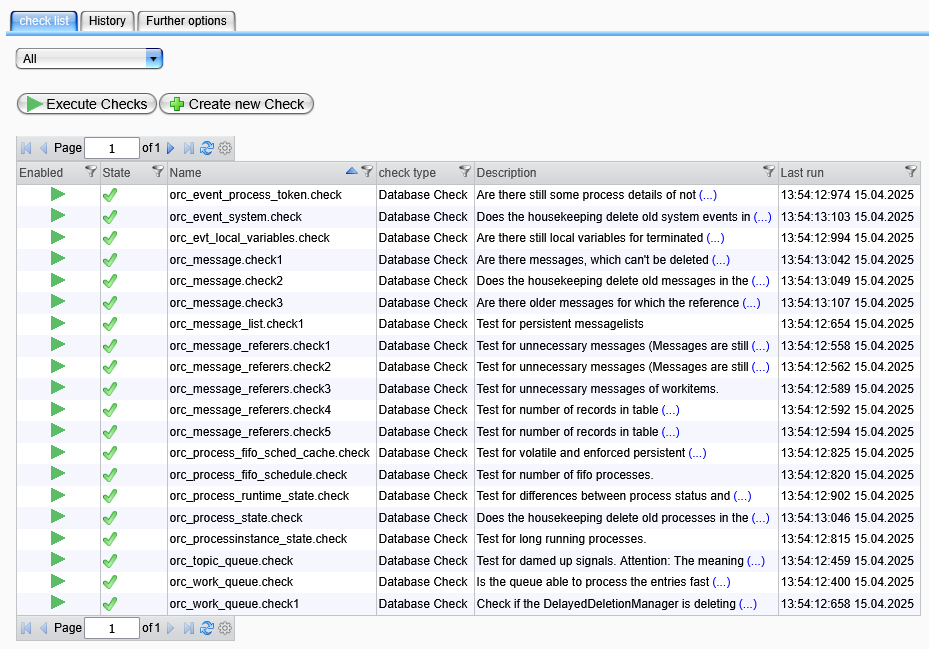
This action will navigate you to the tool's main view:
Specific roles must be assigned to users in order to execute or edit health checks (HealthCheckUser, HealthCheckAdmin).
For more information, see Edit User - Assign Access Rights.
The panel is organized into three tabs: "Checklist", "History", and "Further Options.
Checklist View
The checklist displays a list of checks loaded into this Orchestra node, serving as an overview of the checks. The functionality of the health check aligns with other monitoring views.
In addition to individual commands for a specific check within the checklist table (accessible via the context menu), the view includes two additional functions:
- Execute Checks: Execute all enabled checks on your list.
- Create New Check: Add a custom individual check. The configuration elements will vary based on the type of check.
Checks of type Database Check cannot be created. To prevent the execution of potentially harmful SQL statements, modifying or creating statements is not permitted.
Description of Table
The table displays all loaded checks alongside their key values at a glance:
-
Enabled: Each check can be enabled or disabled, similar to scenario activation. Double-click on the active/inactive icon to change the activation status.
-
State: Indicates the result of the check's last execution, using the indicators described earlier.
-
Name: The unique name assigned to the check.
-
Check Type: Refers to the type of check, with each type corresponding to a specific component of Orchestra and its system context.
-
Description: A brief explanation outlining the purpose of the check.
-
Last Run: The timestamp of the check's most recent execution.
For more details, double-click on a check to access its details.
History View
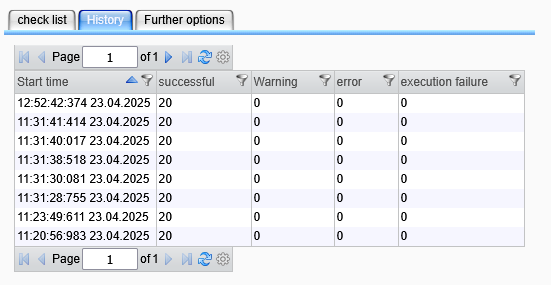
The history view presents all executions from the last three days, allowing you to see the number of checks that finished in each state. Double-clicking a specific row will display the execution report, along with the start time of execution and the execution ID.
Further Options
To export or download the current list of health checks or to import a previous export, navigate to the tab "Further Options".

-
Download Checklist:
You can download the currently used checklist. Clicking theDownload Checklistbutton generates and exports an XML file containing all checks and their configurations. This XML file can be uploaded again in any monitor. -
Upload New Checklist:
To add checks and their configurations to your system, you can upload a new checklist. The uploaded configuration will be saved in the background. Initially, in factory state, no checks are included, but you may easily upload an XML file. A template list is usually provided with the Orchestra distribution and is typically stored in<your_Orchestra_path>\Orchestra\WEB-INF\classes\config\checkList.xml.